12.Favorites, notes, tags
Three tabs that cut across every inventory: starred paths (Cmd+7), per-item annotations (Cmd+8), and a global tag manager (Cmd+9) that powers every multi-filter widget in the app.
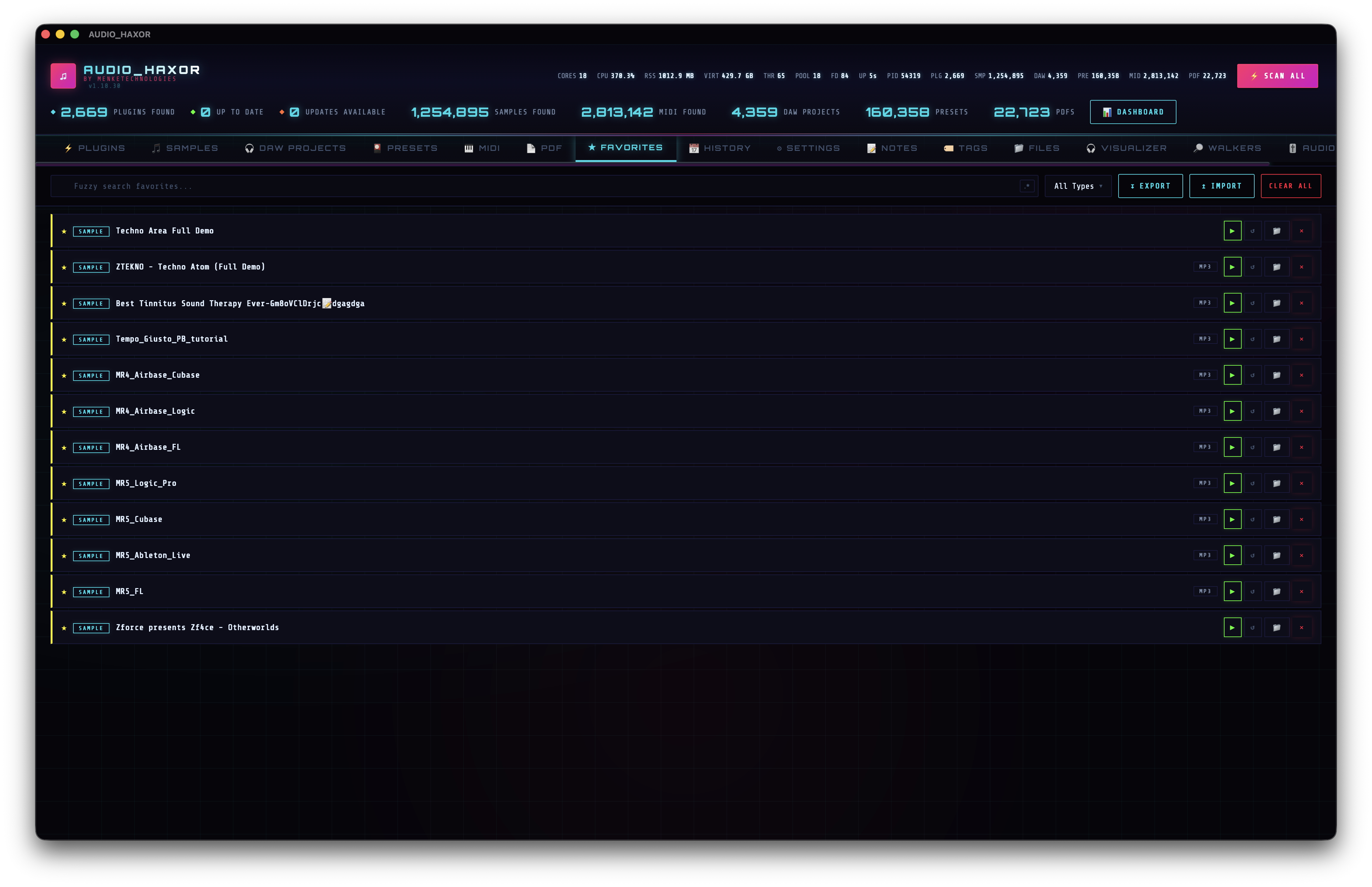
Favorites — Cmd+7
frontend/js/favorites.js. Favorites are a flat list of starred paths. Each item is shaped as {type, path, name, format?, daw?, addedAt} and stored in the favorites pref. Duplicates are prevented by an O(1) _favsPathSet cache. Use F on any row in any tab to toggle favorite; use Cmd+7 to jump to the favorites tab to see them all in one place.
Header controls
- Search —
favSearchInput, fuzzy search with regex toggle. - Type filter —
favTypeFilter, multi-select: Plugins, Samples, DAW Projects, Presets, Folders, Files. Converted from a native<select>into the multi-check widget bymulti-filter.js. - Export, Import, Clear All — export supports PDF/CSV/TSV/TOML/JSON; import deduplicates by path.
Item cards
Each card displays a star icon, a type badge, the name (with search highlight), format / DAW badges if applicable, and per-type row actions:
- For samples: a play button (
previewAudio), loop toggle (toggleRowLoop), open folder, remove. - For DAW projects: double-click opens the project in its native DAW with a toast indicating which one.
- For plugins: double-click opens the KVR product page (falls back to building the URL if not cached).
- For presets: double-click opens the preset's enclosing folder.
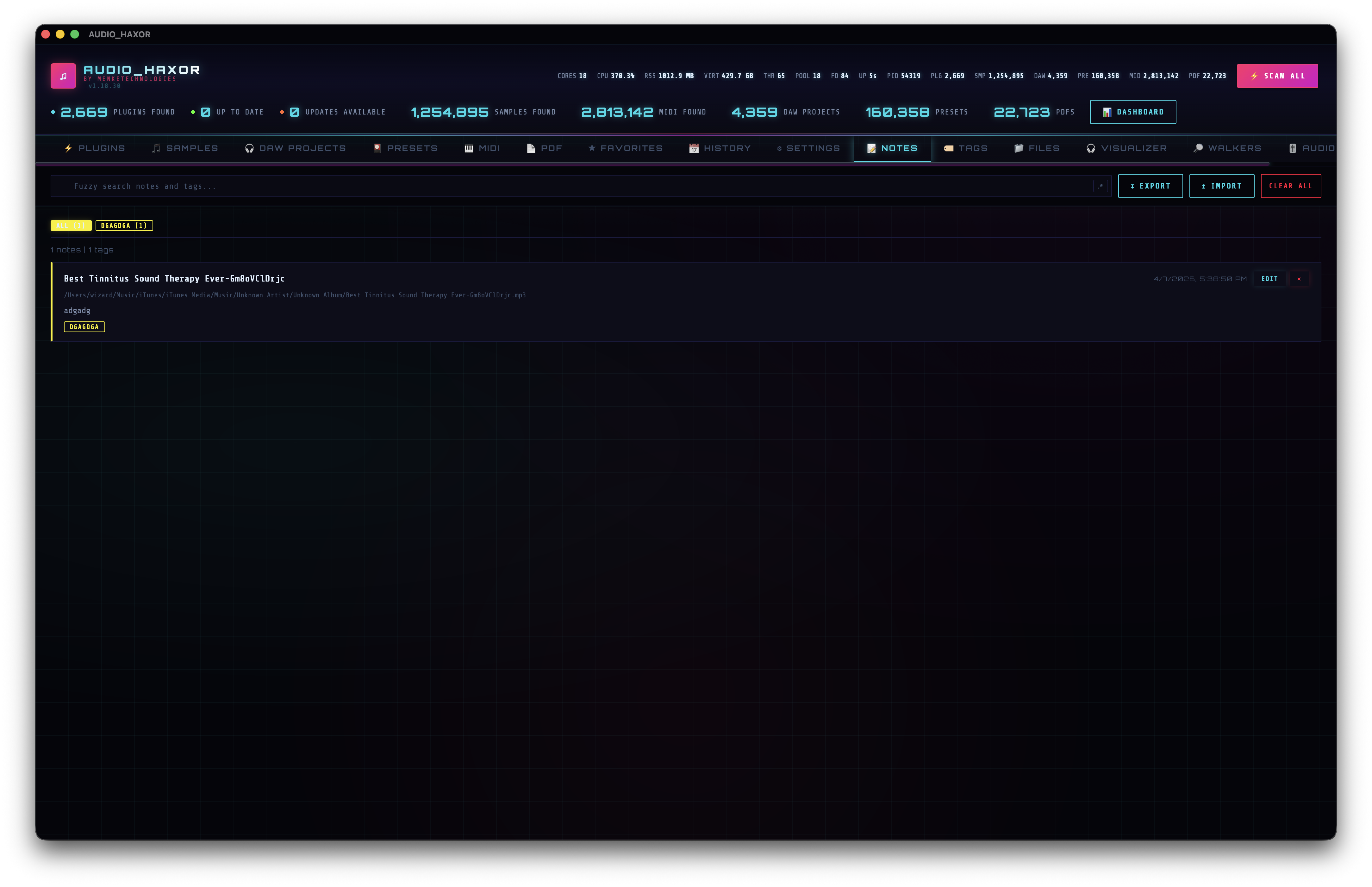
Notes — Cmd+8
frontend/js/notes.js. Notes are per-item annotations shaped as { note, tags, updatedAt } keyed by the normalized file path. Storage lives in the itemNotes pref.
Editing a note
From any tab, right-click a row → Add note (or press N). The modal #noteModal opens with:
- Note textarea —
#noteText, 4 rows, placeholder "Add a note...". - Tags input —
#noteTags, comma-separated. Placeholder shows an example like "kick, bass, favorite". - Tag suggestions —
#noteSuggestions, clickable pills listing every existing tag in your library. - Save / Cancel / Delete Note (if the note already exists).
Notes tab layout
The Notes tab renders a card list of every item that has a note and/or tags, with:
- Filename, modified date, Edit / Delete buttons in the card header.
- Full filesystem path.
- Escaped note body.
- Tag pills (clickable to filter the notes list).
Above the list is a tag cloud with an All button (showing total count) and an individual pill per tag (showing per-tag count). Clicking a tag filters the list; clicking All clears the filter. The stats summary shows total notes and total tags.
Tag helper functions (notes.js)
getAllTags()— union of all tags across items + standalone tags.getTagCounts()— count map, includes zero-count standalone tags.getItemsWithTag(tag)— all items that carry a tag.addTagToItem(path, tag)/removeTagFromItem(path, tag)— single-item mutations; refreshes row badges in every open tab.renameTag(old, new)— rename across every item that uses it.deleteTag(tag)— wipe the tag from all items + the standalone list.
Every row in every tab calls rowBadges(path) which combines the favorite star, a note-icon indicator, and the first three tags (with +N more if there are more than three). That's how you see your annotation state everywhere without leaving the current tab.
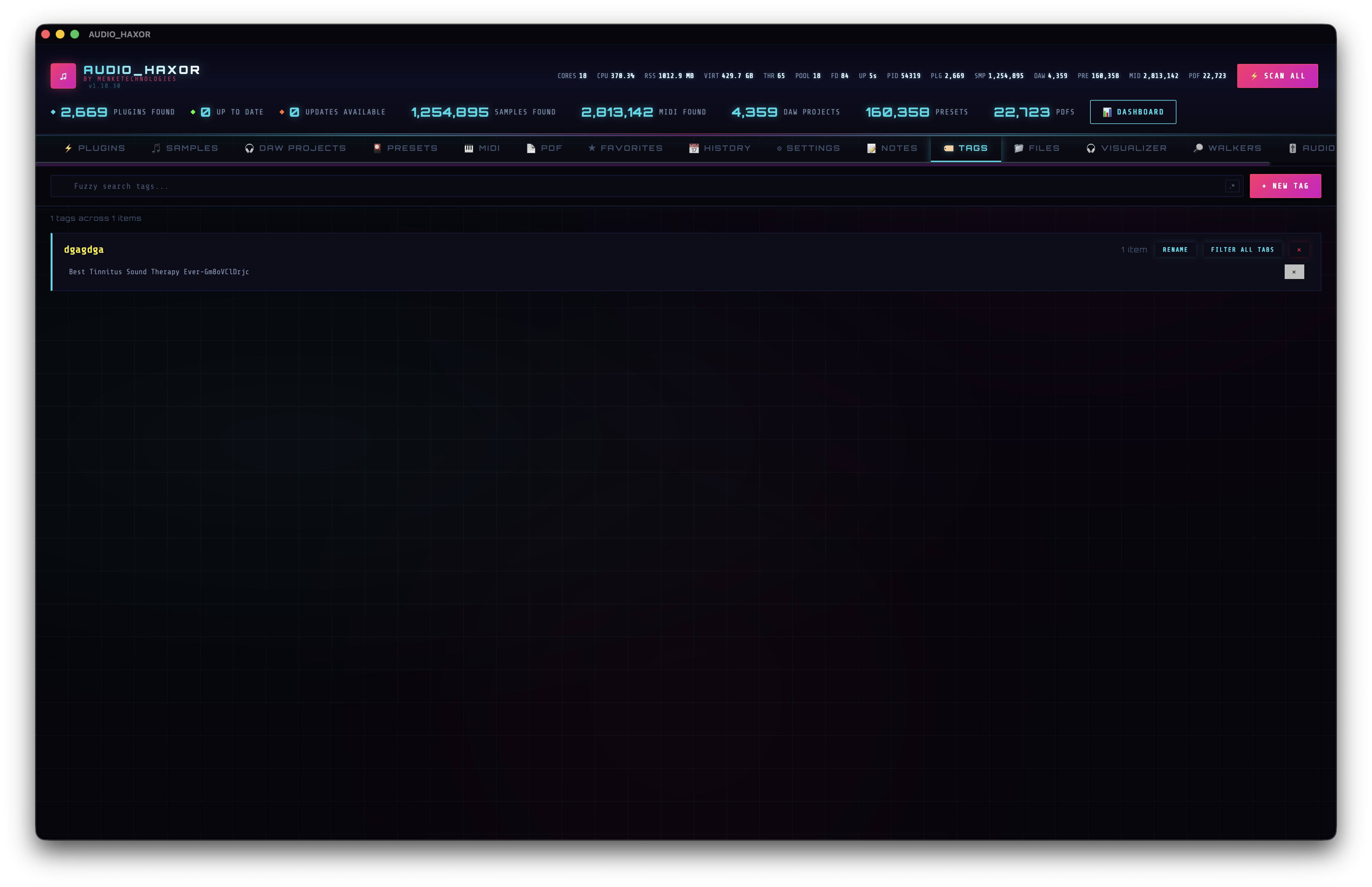
Tags — Cmd+9
The Tags tab is the global tag manager — create tags that don't yet live on any item (stored as standalone tags in the standaloneTags pref), rename tags across the whole library, delete tags, and see the complete cloud. Header controls: fuzzy search (tagSearchInput), regex toggle, and New Tag (createTag).
Multi-filter bar
frontend/js/multi-filter.js. Every native <select class="filter-select"> in the app is upgraded into a cyberpunk multi-check dropdown on boot:
- A button (
.multi-filter-btn) shows the current label: "All" when nothing is selected, "X selected" when multiple, or the single value name when exactly one. - The dropdown (
.multi-filter-dropdown) has an All checkbox at the top, a divider, then per-option checkboxes. - Dropdowns close on outside click.
getMultiFilterValues(selectId)returns aSetof selected values, ornullif All is active.setMultiFilterValue(selectId, value)programmatically selects a value.
Multi-filters are used in Plugins (type, status), Samples (format, sample rate, channels, folder), DAW (DAW), Presets (format), Favorites (type), and anywhere else a filtered view is needed.
Tag filter bar
When one or more tags are active, an optional tag-filter bar appears above (or below) the current tab's table — the position is controlled by Tag bar position in Settings → Appearance. Toggle the bar entirely with Cmd+Shift+T. This lets you pin a "bass / 808" filter across every tab as you navigate.
Export, import, clear (all three)
Each of Favorites, Notes, and Tags supports its own export/import/clear flow. Exports go to PDF, CSV, TSV, TOML, or JSON depending on the type. Imports deduplicate by path so you can merge catalogs without overwriting. Clear-all always confirms before wiping.
bpm_range rule and you have a live "120–130 BPM drum fills" view.